
Build the Flow in Salesforce. Run it in your inbox.
FlowRunner does two things. It runs your Salesforce Screen Flows from Outlook or Gmail with email context auto-filled into Flow inputs. And it shows the records your team actually needs to see when they open an email. Easy configuration, powerful results.
Install the managed package in minutes. No credit card.

"FlowRunner was the only way to truly integrate Salesforce into our existing workflow. The plugin works so seamlessly within Outlook that our team barely even needs to log into Salesforce anymore." — Stijn Terhorst, Sales Manager, Het Nationale Theater
Two powerful features. Both configured in Flow Builder.
Run your Screen Flows from the inbox.
Build the Flow in Salesforce. Same Flow Builder. Same Screen Flow design.
To capture email context, the admin adds FLR input variables to their Flow — input variables they declare themselves, using the naming convention FlowRunner recognises. At runtime, FlowRunner auto-fills those variables with the email's context: sender, recipients, cc, bcc, subject, body, thread ID, message ID, the user's Microsoft or Google identity, and more.
The user opens an email in Outlook or Gmail. The FlowRunner taskpane shows the Flows they've been assigned. They click one. The Flow renders inline with the email context pre-filled into the FLR input variables. Because the taskpane renders Salesforce itself via Lightning Out 2.0, the Flow is running inside Salesforce as the user clicks through. There is no separate write-back step.
Show the right Salesforce records when the user opens an email.
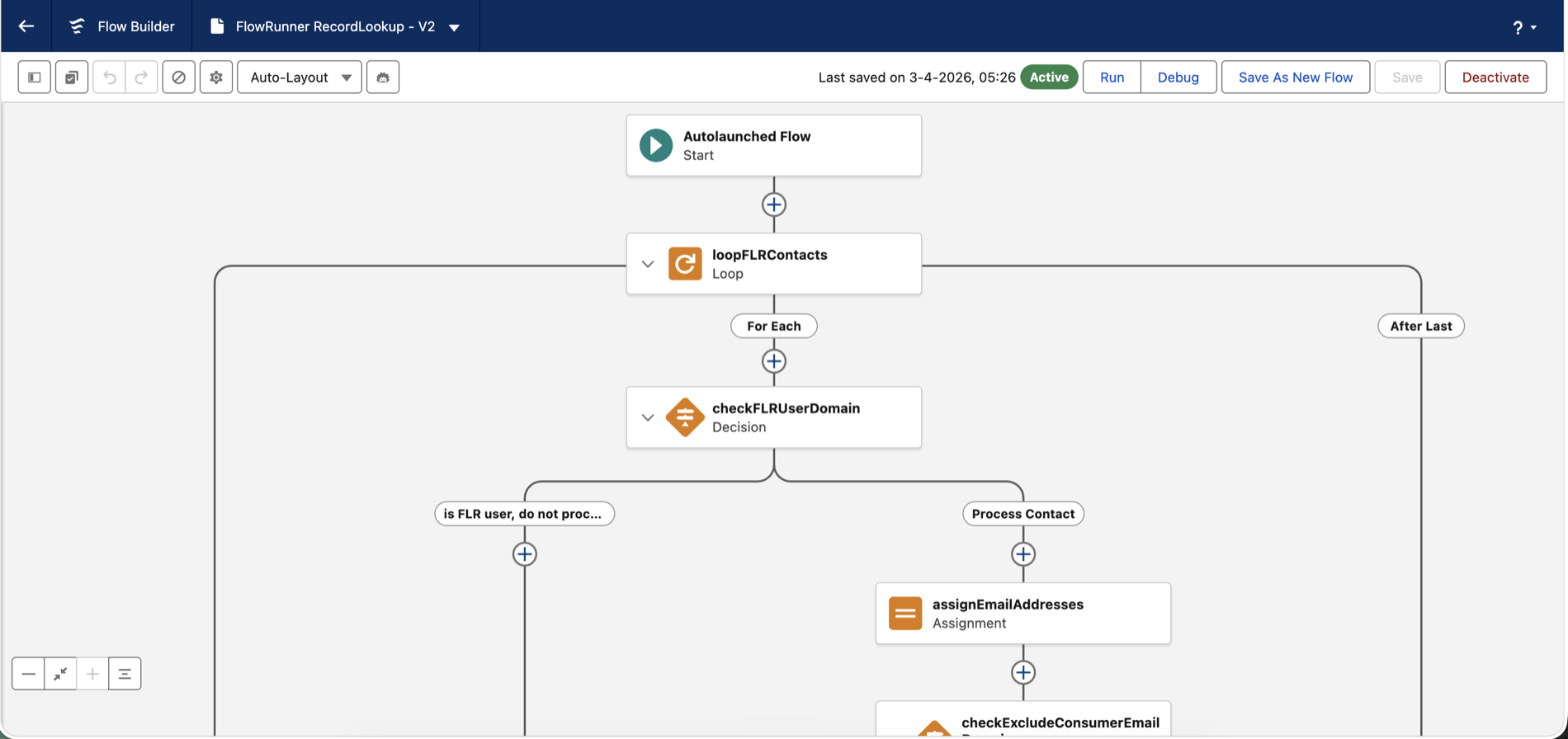
Override the RecordLookup Flow that ships in the managed package.
The managed package contains a default RecordLookup Flow as a template. To customise what appears in the sidebar, the admin overrides that Flow in their own Salesforce org. Match by sender domain, by recipient, by subject pattern, by a custom field on the email's contact, by record type, or by combinations of the above.
Output any object, standard or custom. Sales might see Opportunities; Support might see Cases; a project manager might see linked Deliverables from a custom object. Different per-team behaviour comes from conditional logic inside that single Flow, or from sub-flows it calls. Users can edit fields inline on those records when a full Screen Flow would be overkill — field-level security still applies.
FlowRunner ships as a Salesforce managed package plus an Outlook or Gmail add-in.
We don't sync your data. We run your logic.
Five steps to FlowRunner running in your org.
Roughly 15 minutes end-to-end. The admin sets these up once; each user does a one-time OAuth on first use.
-
1
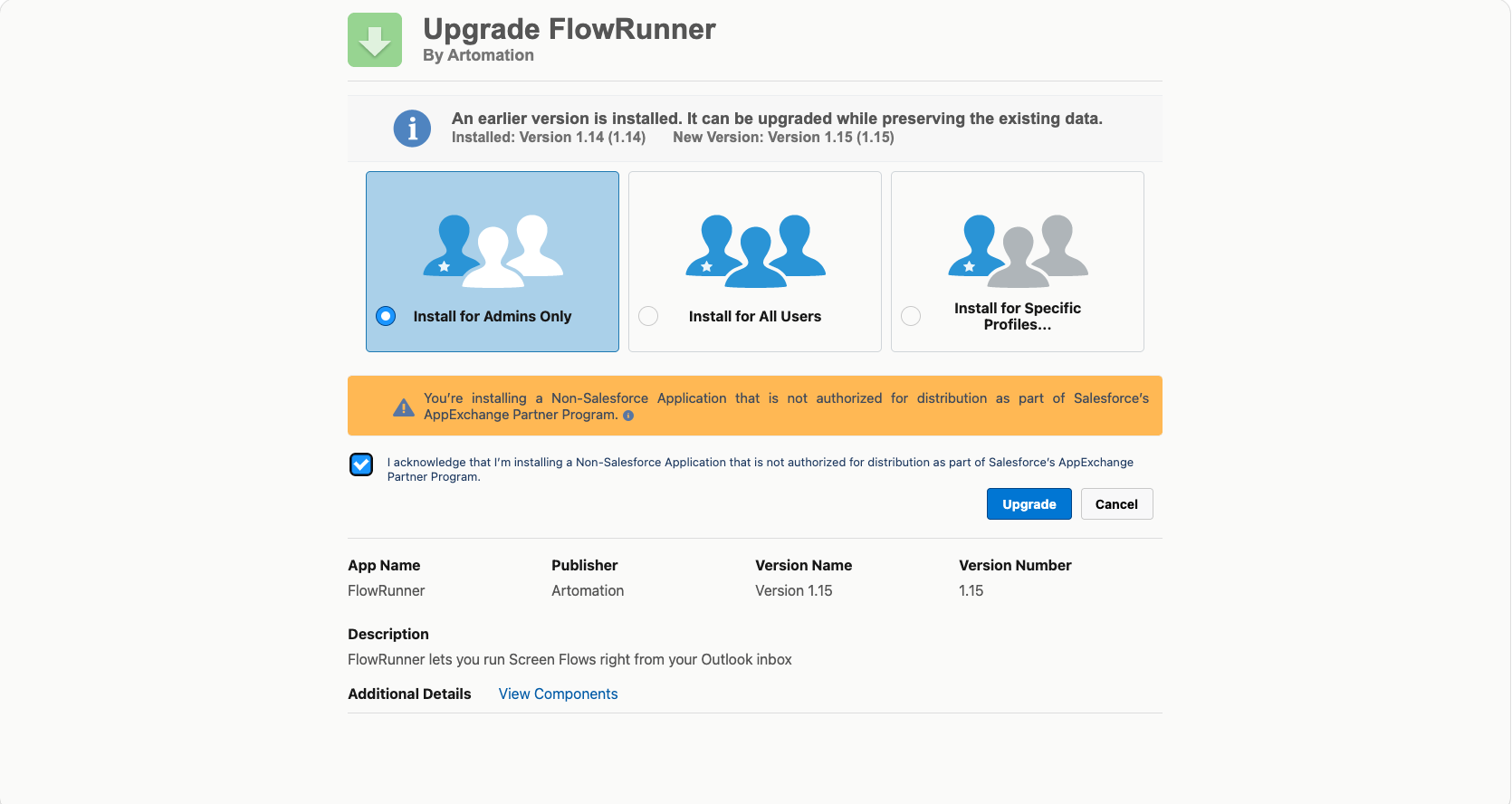
Install the FlowRunner managed package in Salesforce.
The 2GP managed package delivers the LWC + Aura pair that renders Screen Flows via Lightning Out 2.0, an External Client App for OAuth, and the default RecordLookup template Flow.
-
2
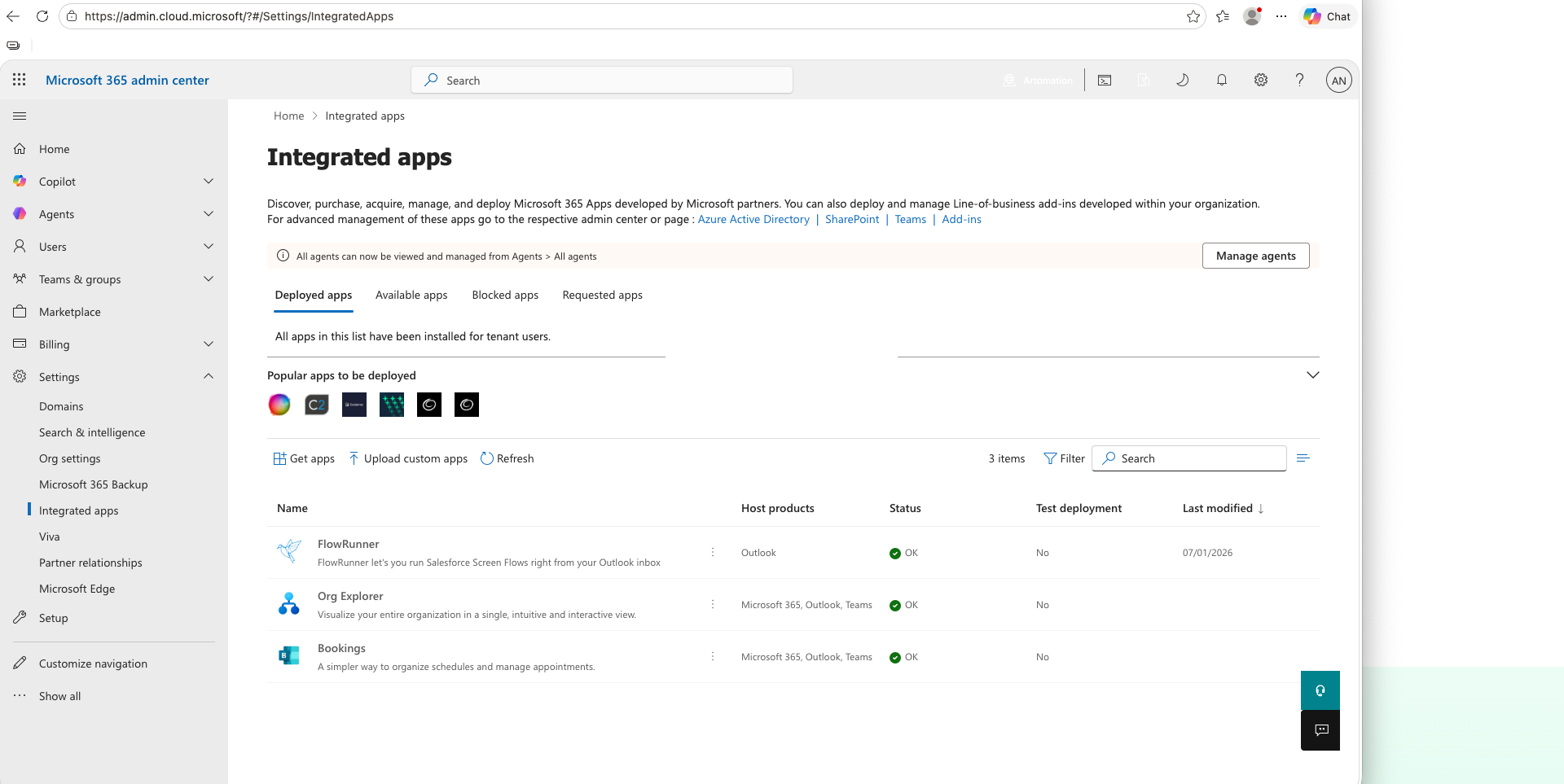
Deploy the add-in to your users.
Microsoft 365 Admin Center or Google Workspace. Deploy by user, group, or domain. Verified apps on Microsoft Marketplace and Chrome Web Store.
-
3
Add FLR input variables to the Flows you want to expose.
In Flow Builder, declare the FLR input variables on each Flow you want available in the inbox. Use
FLR_inputContacts,FLR_inputEmailMessage,FLR_inputUser, andFLR_inputAttachments. FlowRunner auto-fills them at runtime with the email's context. After you add or change an input variable, click Refresh flows on the org in the FlowRunner admin portal so FlowRunner reads the change.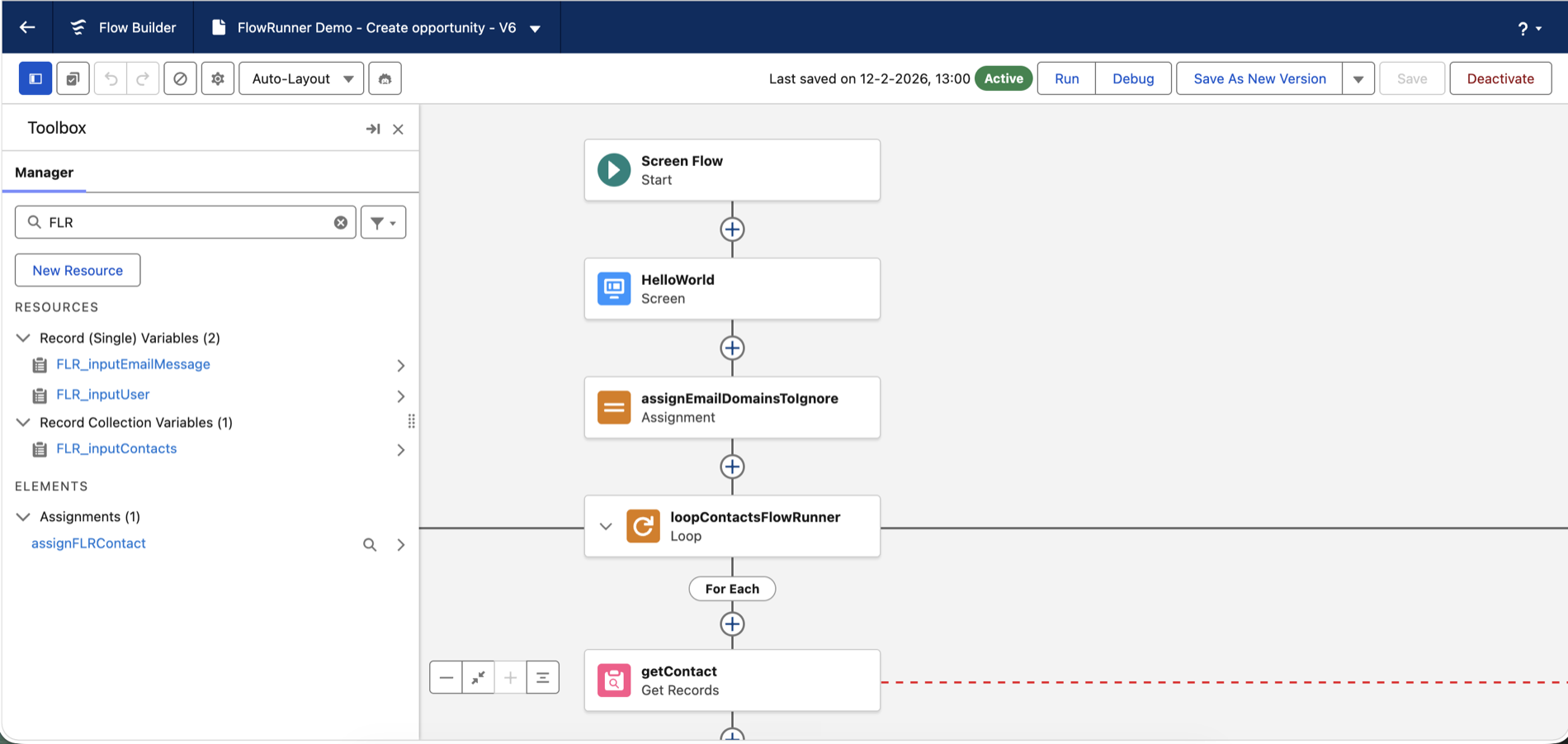
-
4
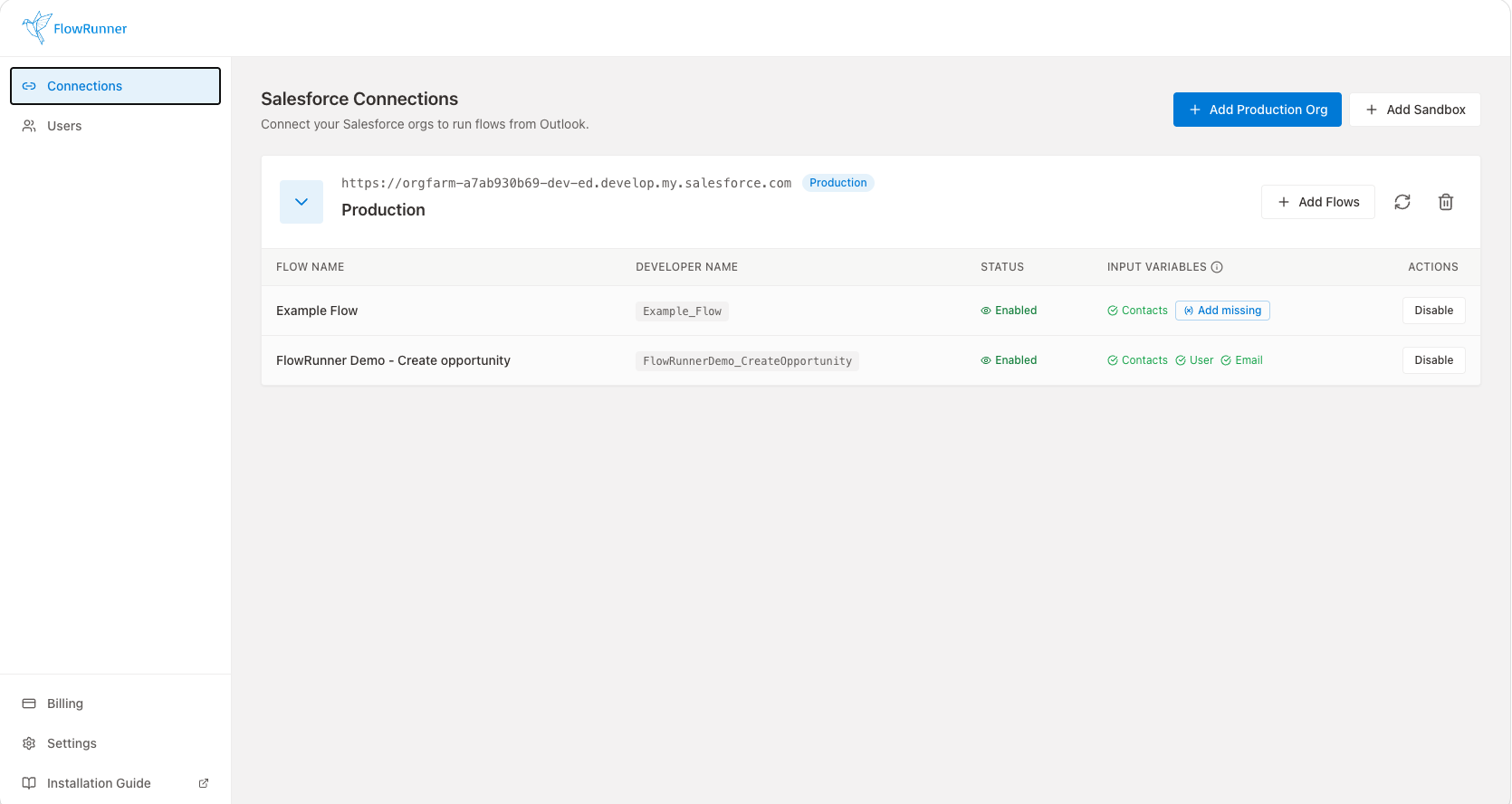
Assign Flows to users in the FlowRunner admin panel.
Sales sees the Flows you assigned to Sales. Support sees Support Flows. One Flow can serve many teams or one team only. Salesforce permissions still apply on top of the FlowRunner assignment.
-
5
Override the RecordLookup Flow to choose what surfaces in the sidebar.
The default RecordLookup Flow ships with template logic to match Contacts, Accounts, and Opportunities by sender data. Take control by overriding it in your own org and customising the matching logic to your team's needs.
How does FlowRunner work?
FlowRunner has three surfaces. The Outlook or Gmail add-in reads the email context. Our middleware authenticates the user and brokers the call. Salesforce executes the Flow under the user's session, against your data model, with your Permission Sets and validation rules. Logic and data stay in Salesforce.
The email side.
The Outlook add-in or Gmail Chrome extension. Authenticates the user via Microsoft or Google SSO. Reads the email context — sender, recipients, subject, body, thread, message — and renders the FlowRunner taskpane. Pushed via Microsoft 365 Admin Center or Google Workspace.
The middleware.
Our Azure-hosted backend authenticates the user, fetches their assigned Flows, and brokers Lightning Out 2.0 to render Salesforce inside the taskpane. Customer record data transits but is never persisted. EU-resident tenancy available. We store user identities, encrypted OAuth tokens, and run metadata for audit.
The Salesforce side.
The FLR managed package and the Flows you build. Screen Flows execute under the user's authenticated Salesforce session, against your data model, with your Permission Sets, validation rules, Apex, and triggers all firing as they would anywhere else in Salesforce. The RecordLookup Flow override returns whatever records the sidebar should show.
You own the process. FlowRunner owns the delivery.
Why this isn't a sync tool, and isn't a sidebar viewer.
Most tools that connect Salesforce to the inbox fall into one of two patterns. Sidebar viewers show records and let users edit fields manually without guidance. Continuous-sync tools move data in the background but often cause more data quality problems than they solve. Both are admin headaches in different forms. FlowRunner does neither.
| Sidebar viewers | Continuous-sync tools | FlowRunner | |
|---|---|---|---|
| Where logic lives | Nowhere — sidebar just renders records | Their sync rules + your Salesforce | Flow Builder in your Salesforce org |
| Data movement | Read-only display | Background sync, dedupe, conflicts | No sync — Flow runs in Salesforce |
| Who edits the records | User, manually, in the sidebar | The sync tool's backend servers | User, guided by a Flow |
| Validation rules + Apex fire | Depends on the sync configuration | ||
| New automation surface to maintain | Yes — sidebar config UI | Yes — sync mapping tool | No — it's Flow Builder |
| Updates roll out by | Vendor release cycles | Vendor release cycles | Publishing a new Flow version — every user gets it on next load |
FlowRunner runs the business logic the admin already wrote, where the user already works.
"Salesforce is incredibly powerful, but its biggest pitfall is that it offers too much. For users without an IT background, it can be overwhelming. FlowRunner solves this by stripping away the noise, ensuring our team only sees the information and buttons they actually need to do their job."
What admins ask before they commit.
The seven implementation questions that come up in every demo. If your question isn't here, the security and platform pages cover the rest.
Do my existing Screen Flows work, or do I rebuild?
What are the FLR input variables?
FLR_inputContacts holds all the email participants'
data such as their name and email address as a collection of Contacts.
FLR_inputEmailMessage contains data such as the
subject and body of the email.
FLR_inputUser is the user running the Flow. Lastly,
FLR_inputAttachments is a record collection of
ContentVersion that receives the email attachments the user ticks: FlowRunner
uploads each ticked file to the Flow's org as a Salesforce File owned by that
user before the Flow starts, then passes the file references to the Flow. At
runtime, FlowRunner auto-fills the declared variables with the email's context.
They look like any other input variable because they are.
What about Apex, triggers, and validation rules?
How does the install work?
What permissions does FlowRunner need in Salesforce?
Does it work with my Salesforce edition, Outlook variant, or Gmail version?
Can I try it without booking a call?
Seen enough?
14-day free trial, no credit card, full feature access. Or book a 30-minute working demo.
Comparing against the native Salesforce Outlook tooling? See the comparison.