
Get Started with FlowRunner
Follow these steps to set up FlowRunner for your organization. The entire process takes about 15 minutes.
Installation Overview
Create Account
Sign in with your Microsoft or Google work account
Salesforce Setup
Install the package and connect your org
Install the Add-in or Extension
Install FlowRunner for Outlook from Microsoft Marketplace, or for Gmail from the Chrome Web Store
Prefer to watch? The full walkthrough — from account creation to your first flow:
Create Your FlowRunner Account
Sign up for FlowRunner using your Microsoft or Google work account. The first user from your organization automatically becomes the administrator and you will be redirected to the admin dashboard.
Create AccountInstall Salesforce Package & Connect Org
Install the FlowRunner managed package, then connect your org from the admin dashboard. The package creates the necessary components for secure communication between Salesforce and your inbox — whether your team uses Outlook, Gmail, or both.
Install the FlowRunner managed package
Installation Link
Click below to install in a production Salesforce org (replace "login" with "test" in the URL for Sandbox):
Install Salesforce PackageFlowRunner will become available on the Salesforce AppExchange in the future.
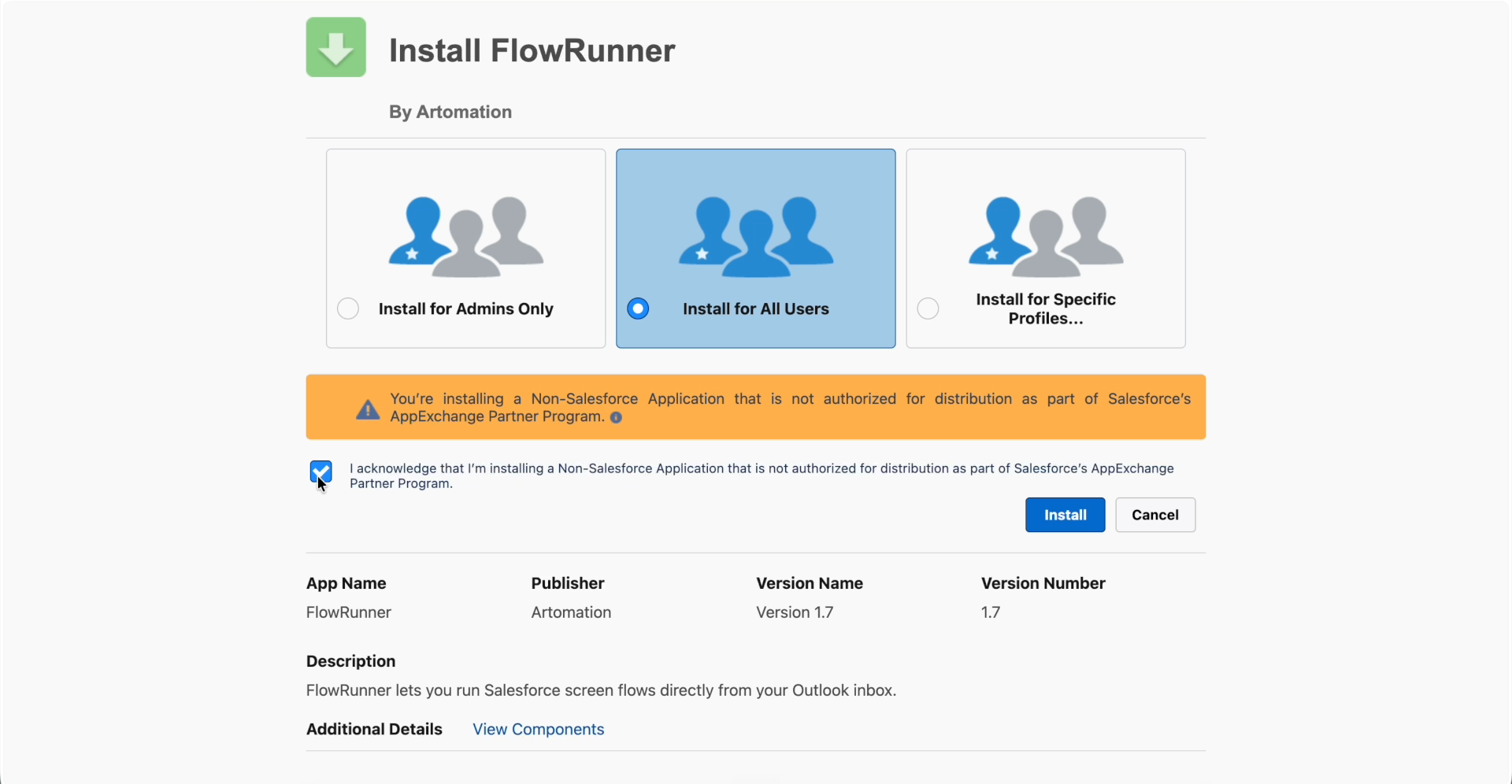
Installation Steps:
- 1 Log in to Salesforce as a System Administrator
- 2 Open the installation URL in your browser
- 3 Select "Install for All Users"
- 4 Click Install and wait for the confirmation message
Configure FlowRunner in the admin dashboard
Once the package is installed, finish setup from the FlowRunner admin dashboard:
2.2.1 Connect Your Salesforce Org
From the FlowRunner admin dashboard, click "Add Production Org" or "Add Sandbox" and authenticate with the Salesforce org where you installed the package.
Log in with a Salesforce account that can authorize connected apps and has the "Modify Metadata Through Metadata API Functions" permission (or "Modify All Data"). FlowRunner uses it to read and apply this org's whitelist / session settings and to sync your flows' input variables. If your account lacks it, ask your Salesforce admin to grant it or connect a different Salesforce account.

2.2.2 Apply the Salesforce Settings
Once your org is connected, the FlowRunner admin dashboard shows a Complete Setup button. Click it to grant the one-time approval that lets FlowRunner apply the two org settings Lightning Out needs:
-
Domain whitelisting (IframeWhiteListUrlSettings) — allows
flow-runner.com(and, for Outlook,outlook.office.com) to securely render your Salesforce Flows. - Session token for third-party sites — Salesforce hands the embedded Flow a short-lived session token instead of a session cookie, so your Flows keep loading in browsers that block third-party cookies.
Important: This is a one-time approval that enables Lightning Out 2.0 to work inside both the Outlook add-in and the Gmail Chrome extension. In most orgs no manual Salesforce configuration is required — just press the button. If your org's security policy stops FlowRunner from changing a setting, the dashboard tells you which one and shows you the steps to set it yourself in Salesforce Setup.

2.2.3 Select Available Flows
After connecting, click Add Flows on the connected org. FlowRunner retrieves all Screen Flows from your org so you can select which flows should be available to your Outlook and Gmail users.

FlowRunner Input Variables
FlowRunner automatically passes context from Outlook or Gmail to your Screen Flows via these input variables. Add them to your flows to receive email and contact data:
FLR_inputContacts
Type: Contact[] (collection)
One Contact per person the user selects in the taskpane — built from the email's sender and recipients, with their name, email address, and role on the email (From, To, or Cc).
FLR_inputEmailMessage
Type: EmailMessage (SObject)
Contains email metadata: subject, body preview, sender, recipients, and
timestamps. Optionally includes
FLR_ExternalMessageId__c
and
FLR_ExternalThreadId__c if
configured.
FLR_inputUser
Type: User (SObject)
The current Salesforce user. Optionally includes
FLR_TenantId__c and
FLR_UserId__c — the
Microsoft 365 or Google Workspace tenant and user account IDs of the
signed-in user.
FLR_inputAttachments
Type: ContentVersion[] (collection)
The attachments the user ticks on the open email. FlowRunner uploads each ticked file to this org as a Salesforce File owned by that user before the Flow starts, then passes the file references. A file the user already owns in the org is reused instead of uploaded again. Up to 25 MB per file; inline images, cloud links, and attached emails are not offered.
FlowRunner reads a Flow's input variables when you add the Flow and when you click Refresh flows on the org. After you add or change one of these variables in Flow Builder, click Refresh flows on the Connections page, or the Flow runs without it.
Full field reference — exactly what each variable receives
FlowRunner only passes a variable if your Flow declares it — declare just the ones you need. Records are passed in memory; nothing is inserted into Salesforce unless your Flow saves it.
FLR_inputContacts
One Contact record per person selected in the taskpane (email sender and recipients).
| Field | Value |
|---|---|
| The person's email address | |
| FirstName | First word of the display name (empty when only an email address is available) |
| LastName | Remainder of the display name |
| Description | The person's role on the email: From, To, or Cc |
FLR_inputEmailMessage
A single EmailMessage record with the full content of the open email.
| Field | Value |
|---|---|
| Subject | Email subject |
| FromAddress | Sender's email address |
| FromName | Sender's display name |
| ToAddress | All To recipients, separated by semicolons |
| CcAddress | All Cc recipients, separated by semicolons |
| HtmlBody | Full HTML body of the email |
| TextBody | Full plain-text body of the email |
| MessageDate | Date and time the email was created (ISO 8601) |
| FLR_ExternalMessageId__c | The email's internet message ID — use it to link records back to this exact email |
| FLR_ExternalThreadId__c | The conversation (thread) ID — use it to group records per email thread |
FLR_inputUser
A single User record identifying who runs the Flow.
| Field | Value |
|---|---|
| Id | Salesforce ID of the user's connected Salesforce account |
| Email address of the signed-in Outlook or Gmail user | |
| FLR_TenantId__c | Microsoft 365 or Google Workspace tenant ID |
| FLR_UserId__c | Microsoft or Google user account ID of the signed-in user |
FLR_inputAttachments
One ContentVersion record per attachment the user ticked, already uploaded to this org as a Salesforce File owned by that user. Declare the variable as a record collection of ContentVersion; any other shape means the Flow does not receive files.
| Field | Value |
|---|---|
| Id | ContentVersion ID of the uploaded file |
| ContentDocumentId | ContentDocument ID — use it to link the file to a record |
| Title | File name |
| FileExtension | File extension, for example pdf |
| ContentSize | File size in bytes |
| PathOnClient | File name as Salesforce stores it — the same value as Title for a file FlowRunner uploaded |
Recipe — log the email and attach its files to it
Declare both
FLR_inputEmailMessage and
FLR_inputAttachments on
the same Flow to log the email in Salesforce with its files on it.
-
Create Records: create the
EmailMessagefromFLR_inputEmailMessage. -
Loop over
FLR_inputAttachments. -
For each item, create a
ContentDocumentLink:ContentDocumentIdfrom the loop item,LinkedEntityIdset to the ID of the EmailMessage you just created, andShareTypeV.
The uploads finish before the Flow starts, so every
ContentDocumentId in the
collection already exists when your Flow runs. The files then show in
the Attachments related list on the email.
Important:
EmailMessage.HasAttachment
is not writable. Salesforce derives that field through its own email
pipelines, so it stays false for an email a Flow created,
even though the file is attached and visible. Do not map it in Create
Records — the insert fails. Do not filter a list view, report, or
decision on it either, or you will miss every email a Flow logged.
Filter on the presence of a
ContentDocumentLink, or on
a checkbox your Flow sets itself.
Handing a file to an Agentforce prompt template is separate work in Salesforce: the prompt needs a retriever, through Data Cloud ingestion or an Apex prompt resource. FlowRunner delivers the file; it does not read it.
Customize the record lookup flow
Flexible Record Lookup
The FlowRunner package includes a customizable auto-launched flow (flowRunnerRecordLookup) that you can modify to match your business needs:
- Match Contacts by email address, name, or any other data you get from the email
- Find Accounts by email domain (e.g., "acme" from "jane@acme.com")
- Look up Leads, Cases, Opportunities, and other standard or custom objects
- Return exactly the records your team needs
The admin dashboard shows whether the lookup flow is installed and active.
Prefer to watch? This video shows how to customize the record lookup flow:
Install the Outlook Add-in or Gmail Chrome Extension
The final step is to install FlowRunner in your team's inbox. Pick the client your team uses — or install both. Individual users can install either themselves, or your Microsoft 365 or Google Workspace administrator can deploy organization-wide.
Outlook · Microsoft Marketplace
Install the FlowRunner add-in directly from Microsoft Marketplace (formerly AppSource):
Open in Microsoft MarketplaceFor Individual Outlook Users
- 1 Open Outlook (web, desktop, or mobile)
- 2 Go to Get Add-ins from the ribbon or settings
- 3 Search for "FlowRunner" and click Add
For Microsoft 365 Admins
- 1 Open the Microsoft 365 Admin Center
- 2 Navigate to Integrated Apps
- 3 Click Deploy Add-in and search for FlowRunner
Gmail · Chrome Web Store Beta
Install the FlowRunner Chrome extension to bring Salesforce Flows into Gmail:
Open in Chrome Web StoreFlowRunner for Gmail is in beta: our app is still in Google's OAuth verification review. The first time you sign in, Google may show a warning that the app is not verified. Click Advanced, then Go to flow-runner.com (unsafe) to continue — all features work normally in the meantime.
For Individual Gmail Users
- 1 Open the FlowRunner listing on the Chrome Web Store
- 2 Click Add to Chrome and confirm the permissions
- 3 Open Gmail and launch FlowRunner from the extension icon or side panel
For Google Workspace Admins
- 1 Open the Google Admin console
- 2 Go to Devices → Chrome → Apps & extensions
- 3 Add the FlowRunner extension by ID and set it to Force install for your users
Optional Configuration
Flow templates
Get started quickly with free best-practice Flow templates. Start with Create Opportunity: it turns the people of an email into Contacts and an Opportunity, without duplicates.
The templates show how to use the
FLR_inputContacts,
FLR_inputEmailMessage and
FLR_inputAttachments variables, and they
also run in Salesforce without FlowRunner.
Or see all Flow templates.
Pre-approve User Access
For a smooth user experience, configure the External Client App (ECA) in Salesforce:
- Set the ECA policy to "Admin Pre-approved"
- Create the "FlowRunner User" permission set and assign it to the ECA
- Assign the permission set to your end users
Not sure which licenses and permissions your users need? See the Salesforce requirements.
Custom Fields for FlowRunner
OptionalFlowRunner can populate custom fields on User and EmailMessage objects. Add these fields to unlock additional context in your flows:
User Object
FLR_TenantId__c
Microsoft 365 or Google Workspace tenant ID
FLR_UserId__c
Microsoft or Google user account ID
EmailMessage Object
FLR_ExternalMessageId__c
Outlook or Gmail message ID for API integrations
FLR_ExternalThreadId__c
Conversation/thread ID for email threading
These fields are automatically populated when present. Useful for integrations that need to reference the original Outlook or Gmail message or FlowRunner context.
Get FlowRunner up and running in 15 minutes.
Our team is here to help with setup. Don't hesitate to reach out if you have any questions.